Payments
This page provides instructions on how to view payments, payments distributions, and upload bulk payments using an Excel spreadsheet.
Payments can be viewed on their respective loans. You can also view payments individually. To view payments go to Payments. Once on payments you can view View Payments or Upload Excel Payments File or Payments Chart.
View Payments
To view payments, you can filter the payments you want by minimum or maximum collection date, or by branch. You can also search by client name. Please select a currency before you search, as it is mandatory. Once you filter, a table with a list of payments will show.
Upload File
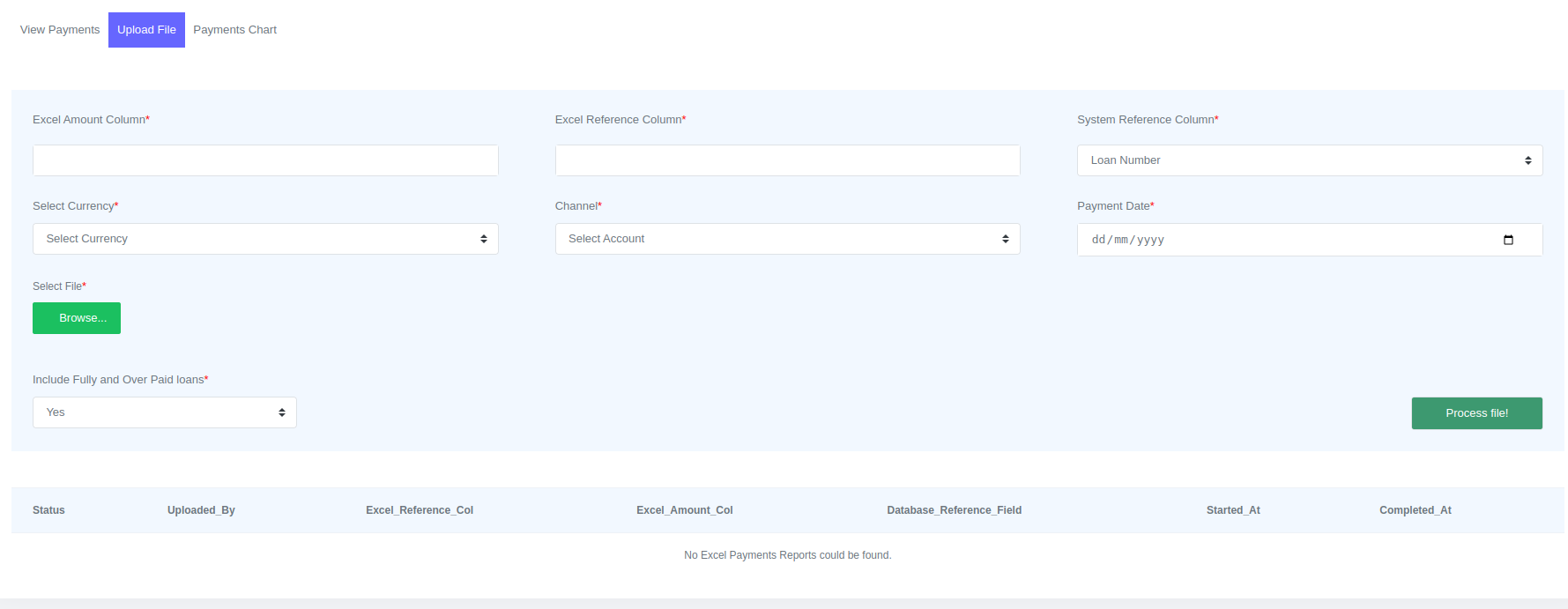
You can upload bulk payments using excel spreadsheets. To process bulk payments follow the following steps.
- Excel Amount Column - Enter the excel amount column on this field as it is on the excel spreadsheet.
- Excel Reference Column - Enter the excel reference column on this field as it is on the excel spreadsheet. This field will be used to match payments to loans. It will refer to a field in the system.
- System Reference Column - The system reference column is a field in the system that is referred to by the Excel reference column. This field is used to match payments on the Excel spreadsheet with the loans in the system. It is a select field with three options which are Loan Number, Client Number and Client ID Number. If Client Number or Client ID Number are selected, the Start with select field will be displayed. This field has two options: Start with Oldest Loan and Start with Newest Loan. These fields configure the system on which loan to add payments first if a client has multiple open loans.
- Select Currency - Select the currency of payments being added.
- Channel - Select the general ledger account involved in making payments.
- Payment Date - Date of payments.
- Select File - Click browse to upload the payments excel spreadsheet. Click on upload to upload.
- Include Fully and Over Paid loans - Include loans that are fully paid or overpaid when updating payments or exclude them.
Once all the fields are updated click process file to update payments.
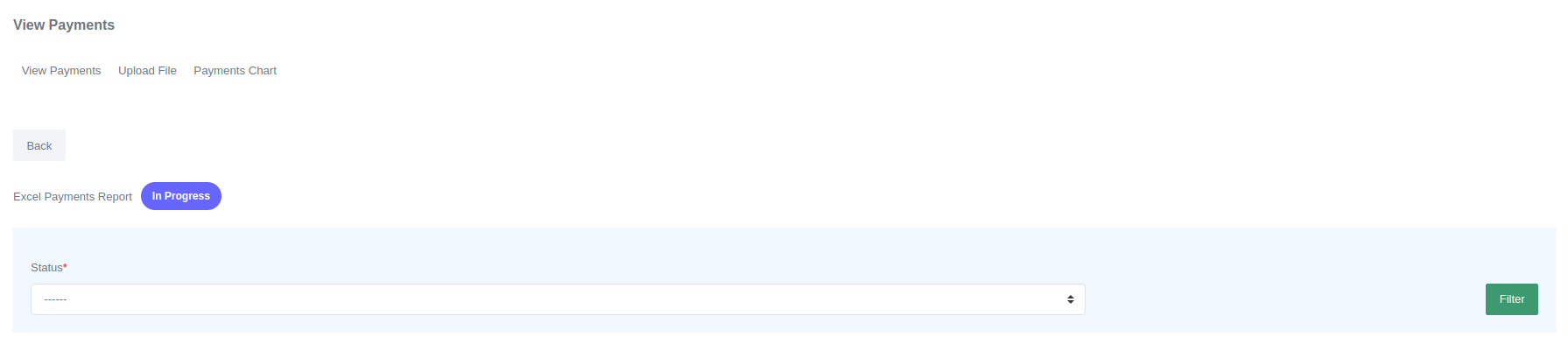 The system will show the Excel payments report with a status of "In Progress." After a few seconds, you can refresh the browser to check if the payments were successfully uploaded. If the upload was successful, the system will display the report with information about the upload. You can filter on Status to view a detailed report on failed, paid and over paid payments.
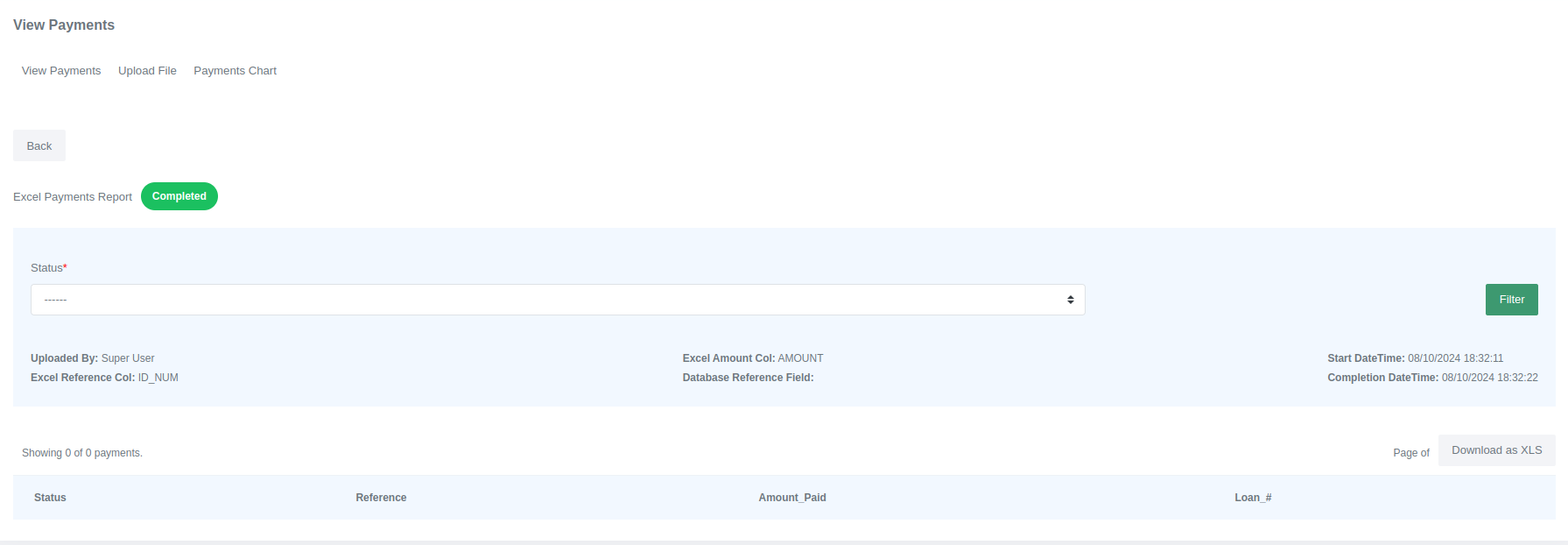
Payment Chart
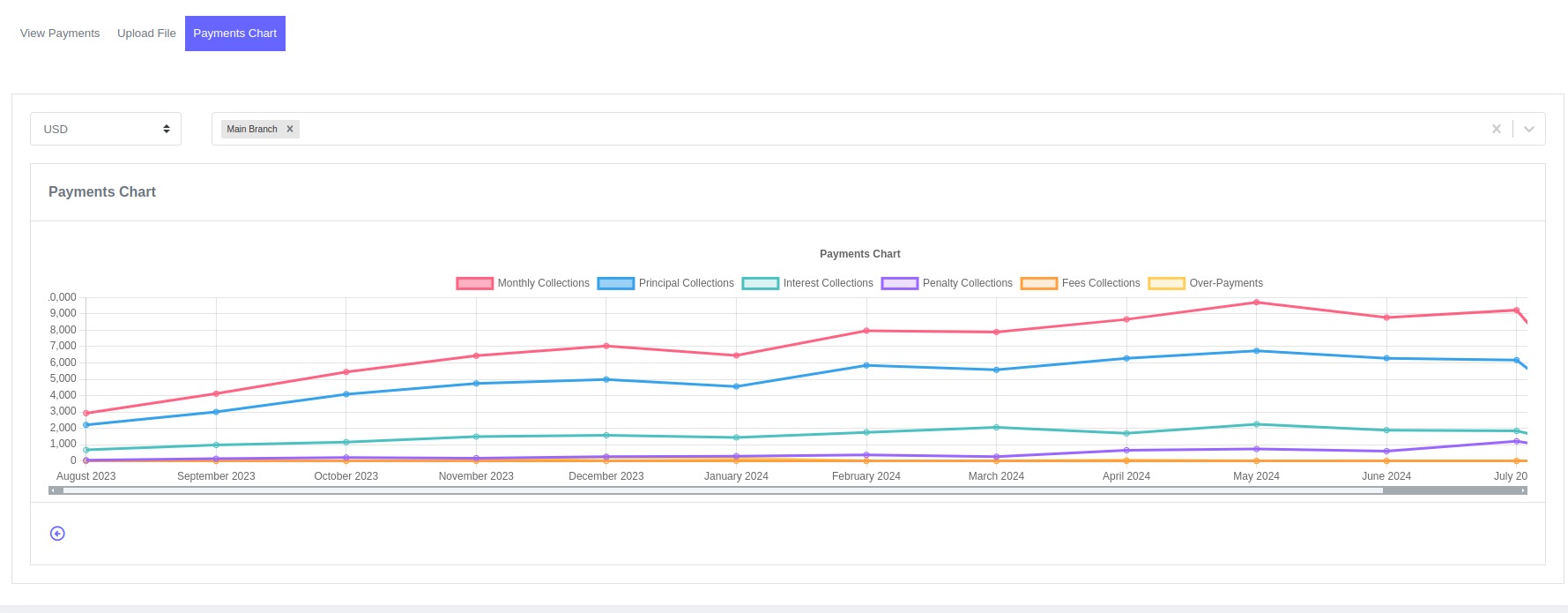
The payments chart shows the total payments made each month and how they are distributed among principal, interest, penalty, and fees. Its a more detailed report than view payments.