Creating Charts of Accounts
The chart of accounts, or COA, is a list of all your company’s accounts, together in one place, that is a part of your business's general ledger. It provides you with a birds eye view of every area of your business that spends or makes money. The main account types include Income, Expenses, Assets, Liabilities, and Equity.
Lenda system support accrual accounting only.
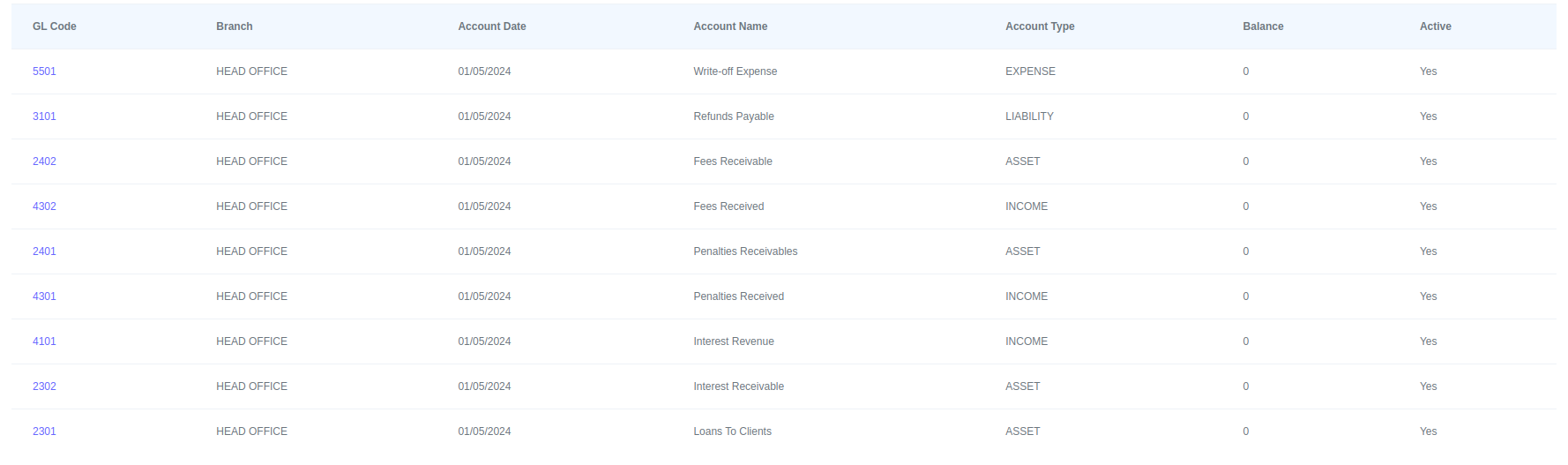
Every account has a balance and status. The balances and status are shown above.
Chart of Accounts Structure
The chart of accounts is organized around two types of general ledger accounts: header and detail accounts.
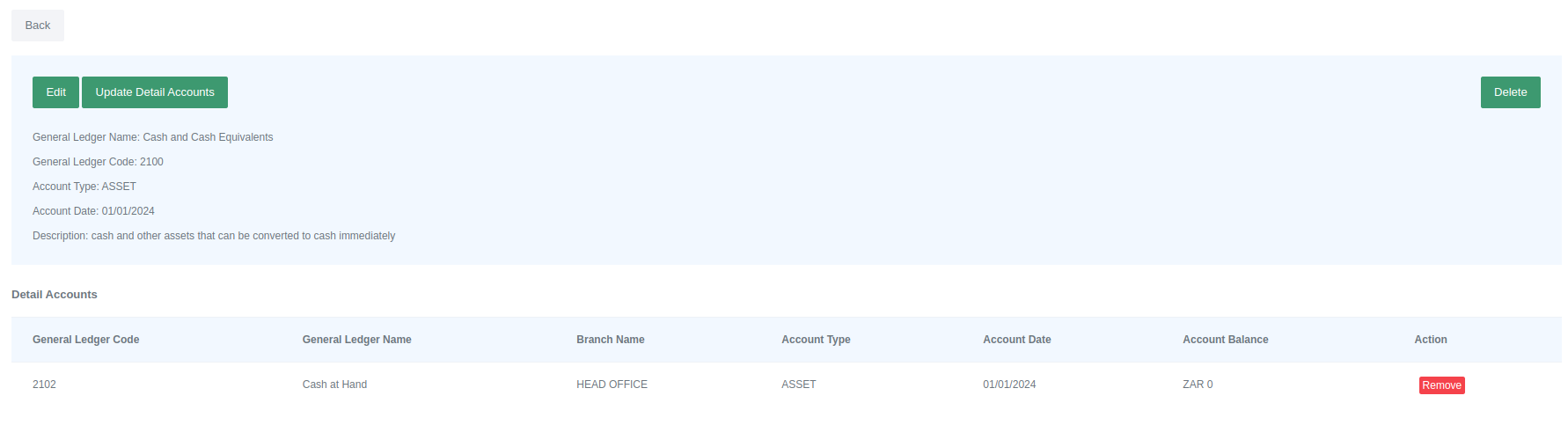
A header account is used to group detail accounts that have a similar purpose. In other words, detail accounts are assigned to specific header accounts, and detail accounts store the transaction balances. For example, Cash and Cash Equivalents could be a header account, and Cash on Hand would be one of its detail accounts.
Creating a new header account
Fields for a header account
| Field | Description |
|---|---|
| General Ledger Name | Name of the General Ledger Header Account |
| General Ledger Code | General Ledger Header Account Code |
| Account Type | Header Account type e.g Asset, Income, Expense, Equity or Liability |
| Account Date | Header Account Opening Date. |
| Description | descriptive summary of the header account. |
Creating a header account
How to create a new header account:
- Go to Accounting > Chart of Accounts > Header Accounts.
- To open the form, simply click on the "Add Header Account" button.

- Enter all the information required in the form.
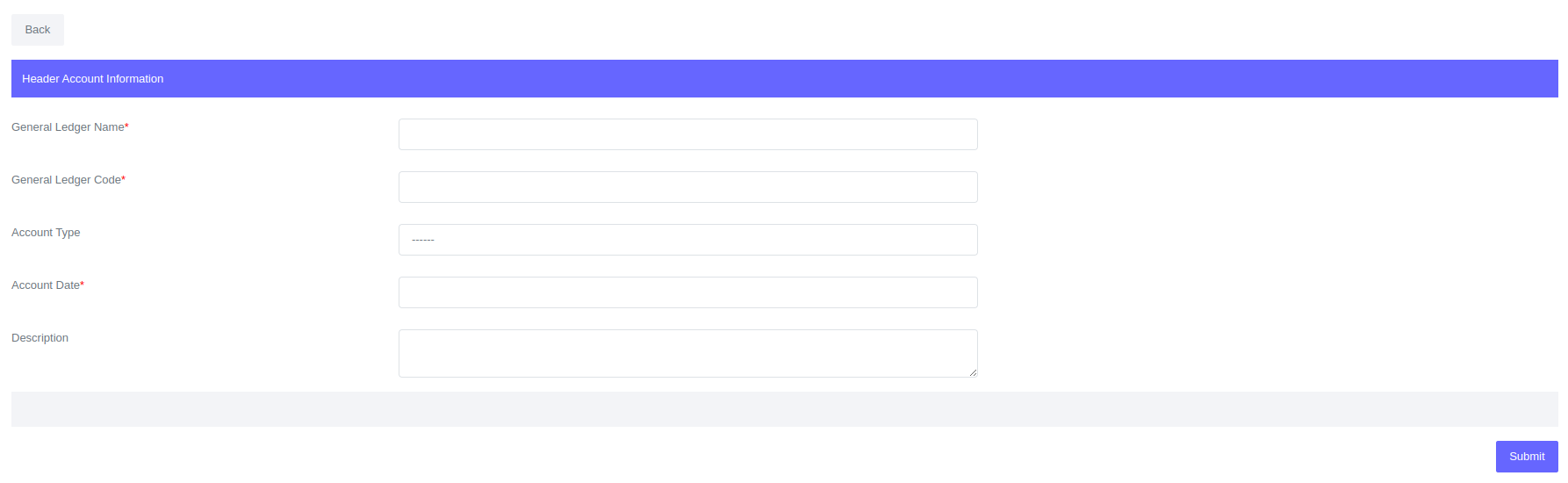
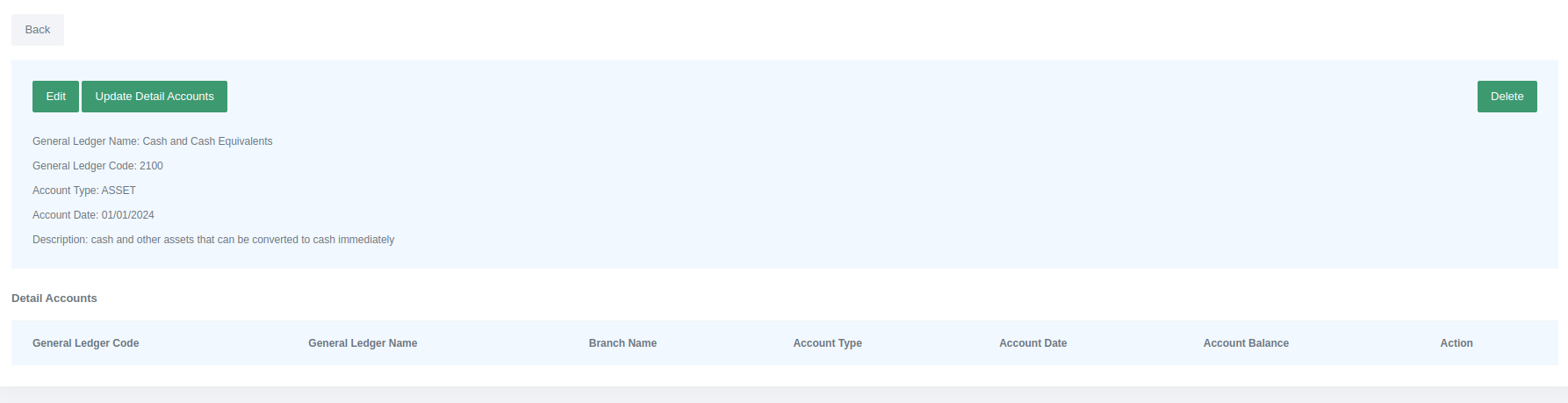
- Click Submit and the system will redirect you to the header account profile.
Creating a new detail account
Fields for a detail account
| Field | Description |
|---|---|
| General Ledger Name | Name of the General Ledger Detail Account |
| General Ledger Code | General Ledger Detail Account Code |
| Account Type | Header Account type e.g Asset, Income, Expense, Equity or Liability |
| Branch | Header Account Branch |
| Currency | Detail Account Currency |
| Account Date | Detail Account Opening Date. |
| Header Account | Assignment of the detail account to a specific header account. |
| Is Cash Account | Is the detail account a cash account or not. |
| Description | descriptive summary of the detail account. |
Creating a detail account
How to create a new detail account:
- Go to Accounting > Chart of Accounts > Detail Accounts.
- To open the form, simply click on the "Add Detail Account" button.

- Enter all the information required in the form.
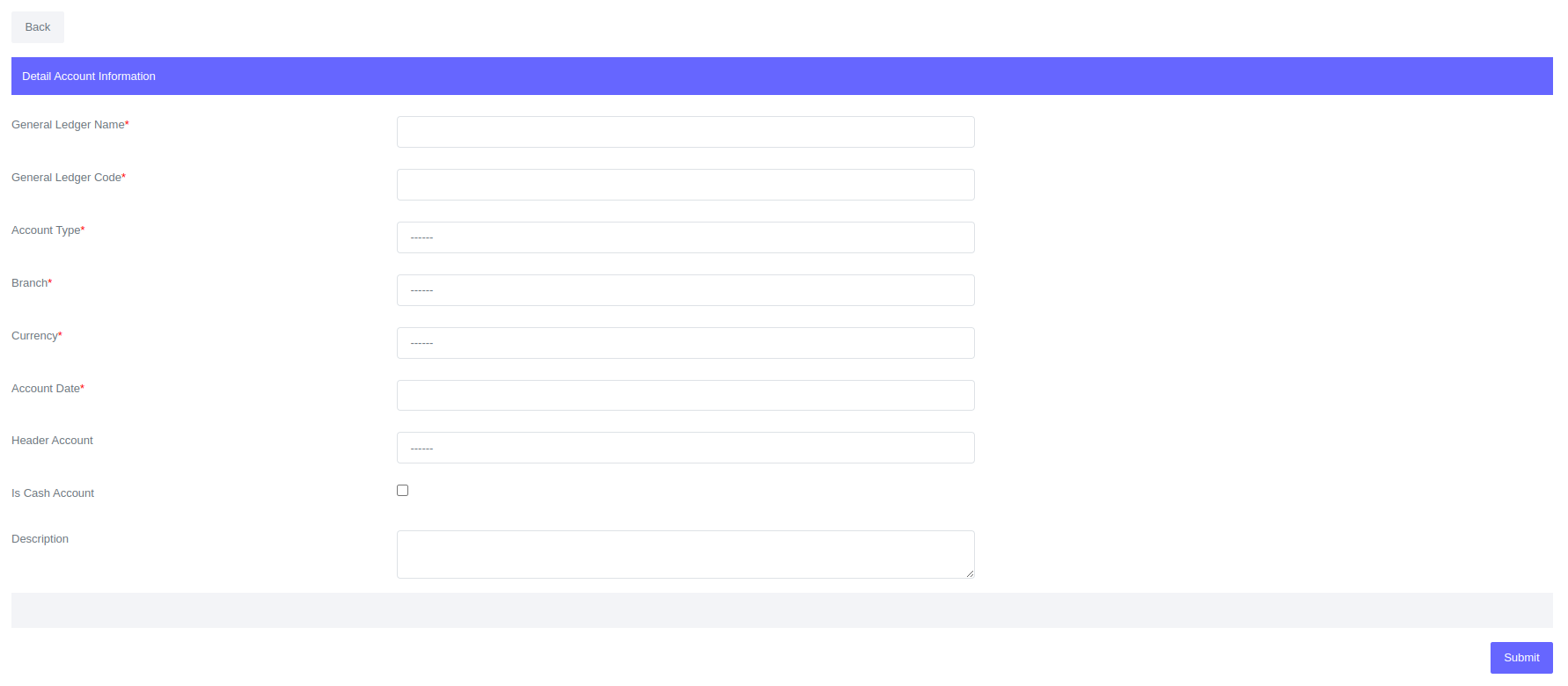
- Click Submit and the system will redirect you to the detail account profile.
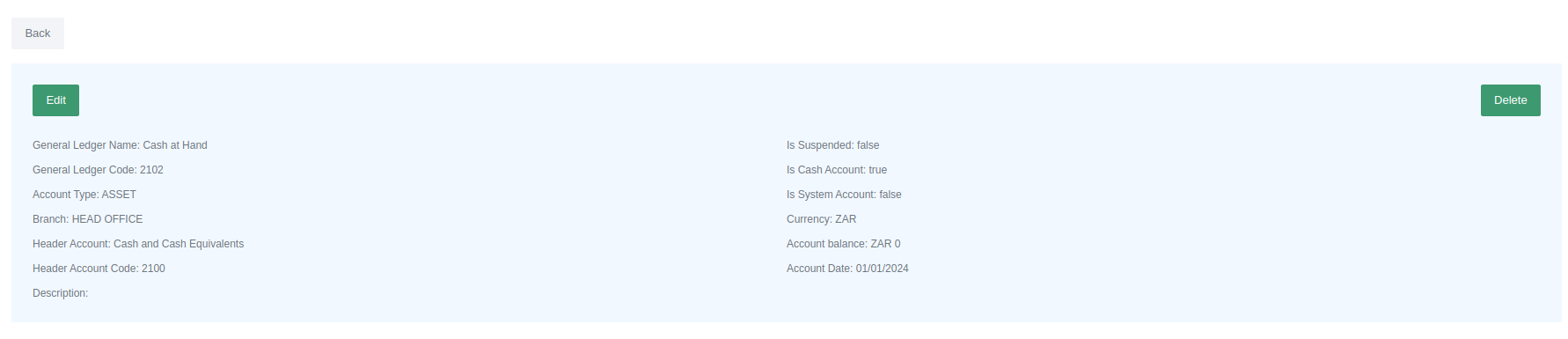
We created a detail account called "Cash at Hand" under the header account "Cash and Cash Equivalents." The initial balance of the detail account will be zero. When we navigate back to the Cash and Cash Equivalents profile, we will see that the detail account "Cash at Hand" has been added under the "Detail Accounts" section.
Editing a header account
- Go to Accounting > Chart of Accounts > Header Accounts.
- Filter to display the header accounts.
- To edit a header account, first click on the GL Code of the account you want to edit. This will open the account profile.
- Click the "Edit" button to edit the header account.
Deleting a header account
- Go to Accounting > Chart of Accounts > Header Accounts.
- Filter to display the header accounts.
- To delete a header account, first click on the GL Code of the account you want to delete. This will open the account profile.
- Click the "Delete" button to delete the header account.
If you delete a header account, all the detail accounts under it will be disassociated with it.
Editing a detail account
If a detail account is not associated with any journal entries, you can edit all the details of the account. To edit a detail account:
- Go to Accounting > Chart of Accounts > Detail Accounts.
- Select Account Type, Currency and Branch to filter.
- To edit the a detail account, first click on the GL Code of the account you want to edit. This will open the account profile.
- Click the "Edit" button to edit the detail account.
Account Date, Account Type, Currency, Branch and Is Cash Account can only be changed if the account has no journal entries.
Deleting a detail account
If a detail account is associated with any journal entries, you cannot delete it. To delete a detail account:
- Go to Accounting > Chart of Accounts > Detail Accounts.
- Select Account Type, Currency and Branch to filter.
- Click on the GL Code of detail account you want to delete to open the detail account profile.
- To delete a detail account, click the "Delete" button. A confirmation dialog box will appear. Click "Delete" in the dialog box to confirm the deletion.
Detail account can not be deleted if it is associated with journal entries.