User Creation, Deactivating and Reactivating
A user is anyone who can access the system. Each user in the system has an account that is linked to certain roles and permissions. The user's actions in the system are limited by their permissions.
Creating a user
- Go to Admin > Manage Staff > Staff.
- Click on "Add Staff" button.

- A form will be opened for you to fill out.
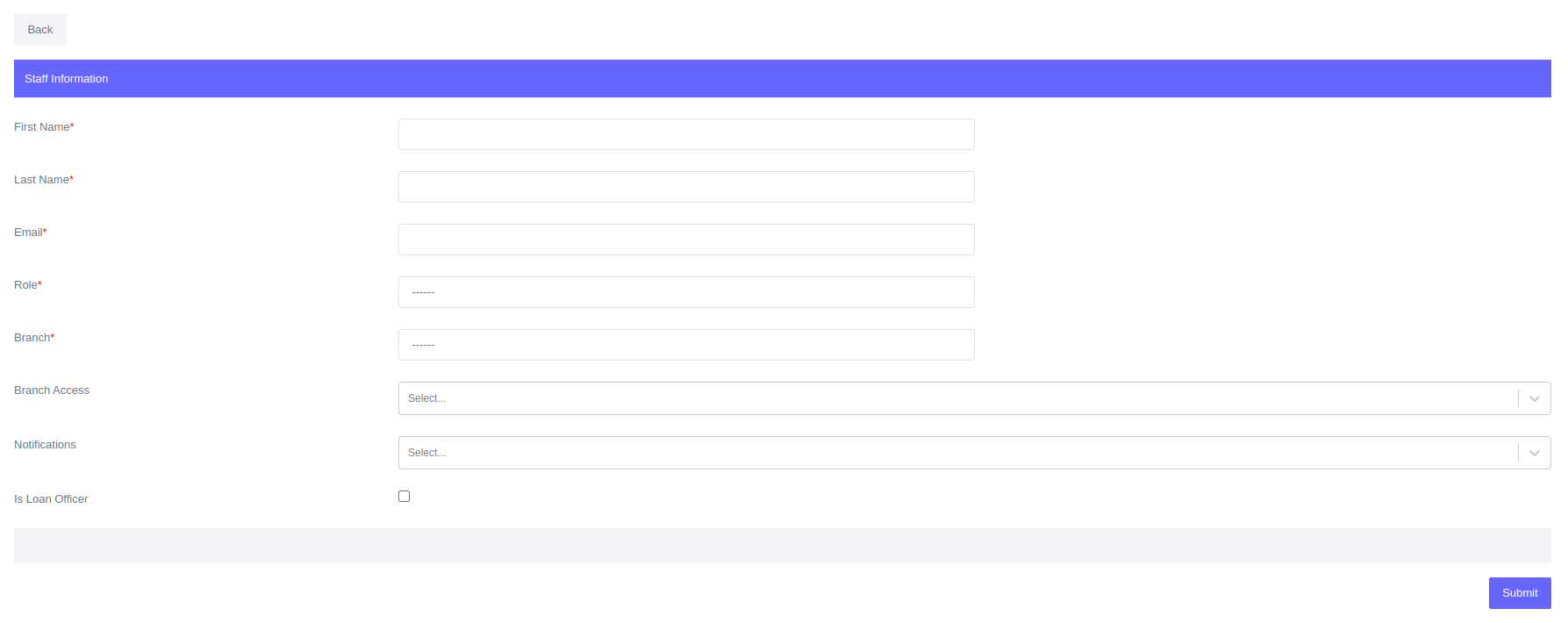
- Click Submit
Once the form is submitted, the system will send an email to the user. To complete the user creation process, the user should check their email and click the link sent to the email to set up a password.
Fields for User
| Field | Description |
|---|---|
| First Name | User first name |
| Last Name | User last name |
| User email. | |
| Role | User Role in the system |
| Branch | User branch |
| Branch Access | list of branches that a user can acces |
| Notifications | Notifications that a user can receive |
| Is Loan Officer | Is user loan officer |
When a role is assigned to a user on user creation, the user will be granted specific permissions. These permissions determine what actions the user can perform in the system.
Deactivating and Reactivating a user
When an organization deactivates a user, that user will not be able to log into the Lenda system. The user's access to the system will be immediately suspended. An organization administrator can be assigned to deactivate user accounts.
To deactivate a user:
- Go to Admin > Manage Staff > Staff.
- Filter the users to find the one you want to deactivate. Then, click on their full name to open their user profile.
- To deactivate the user, click the "Edit" button to open the form. Then uncheck the "Is active" field.
- Submit changes.
To reactivate a user:
- Go to Admin > Manage Staff > Staff.
- Filter the users to find the one you want to reactivate. Then, click on their full name to open their user profile.
- To reactivate the user, click the "Edit" button to open the form. Then check the "Is active" field.
- Submit changes.
Editing the user
To edit a user:
- Go to Admin > Manage Staff > Staff.
- Filter the users to find the one you want to edit. Then, click on their full name to open their user profile.
- To edit the user, click the "Edit" button to open the form.
- Submit changes.
Editing user permissions
In the Lenda system, you can edit user permissions on the user profile. This allows you to assign or restrict permissions for a particular user without creating a role for it.
To edit permissions:
- Go to Admin > Manage Staff > Staff.
- Filter the users to find the one you want to edit permissions. Then, click on their full name to open their user profile.
- To edit user permissions, click the "Edit Permissions" button to open the form.
- Submit changes.