Managing Clients
This page provides instructions on how you can manage a client once created. Once the client is created, you can visit the client profile to continue managing the client. For more information about creating a group, see Creating Client.
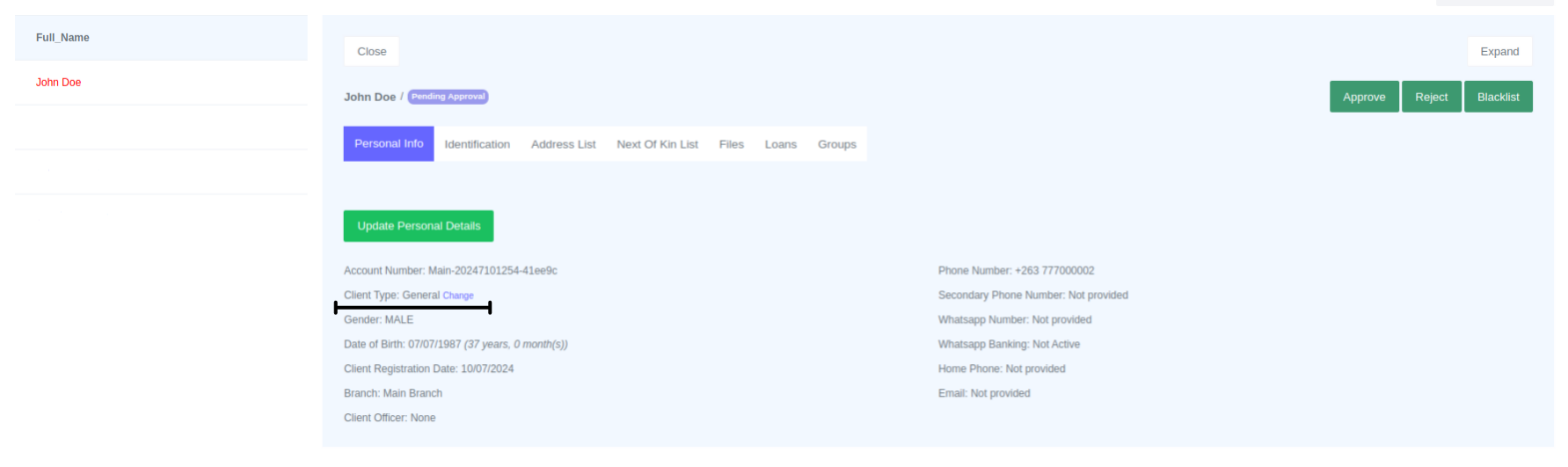
To view a client profile go onto Clients>View Clients. On View Clients filter based on your preferences and click the Client_Number to view the profile of the client. 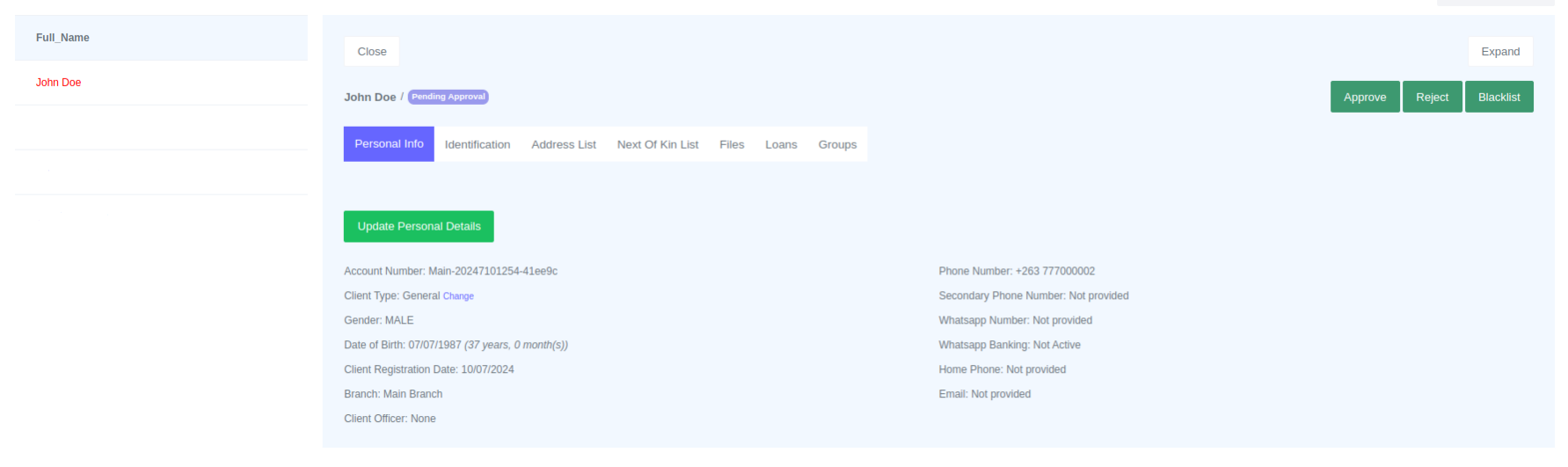 To view clients profile on full screen click on "Expand" button.
The client profile shows tabs of clients information that has been saved. The default tabs are Personal Info, Identification, Address List, Next of Kin List, Files, Loans and Groups. Information from a client is managed on these different tabs.
Editing Personal Info
By default everytime a client profile is viewed the Personal Info tab will be opened. To edit personal info / details click on the "Update Personal Details"
button. 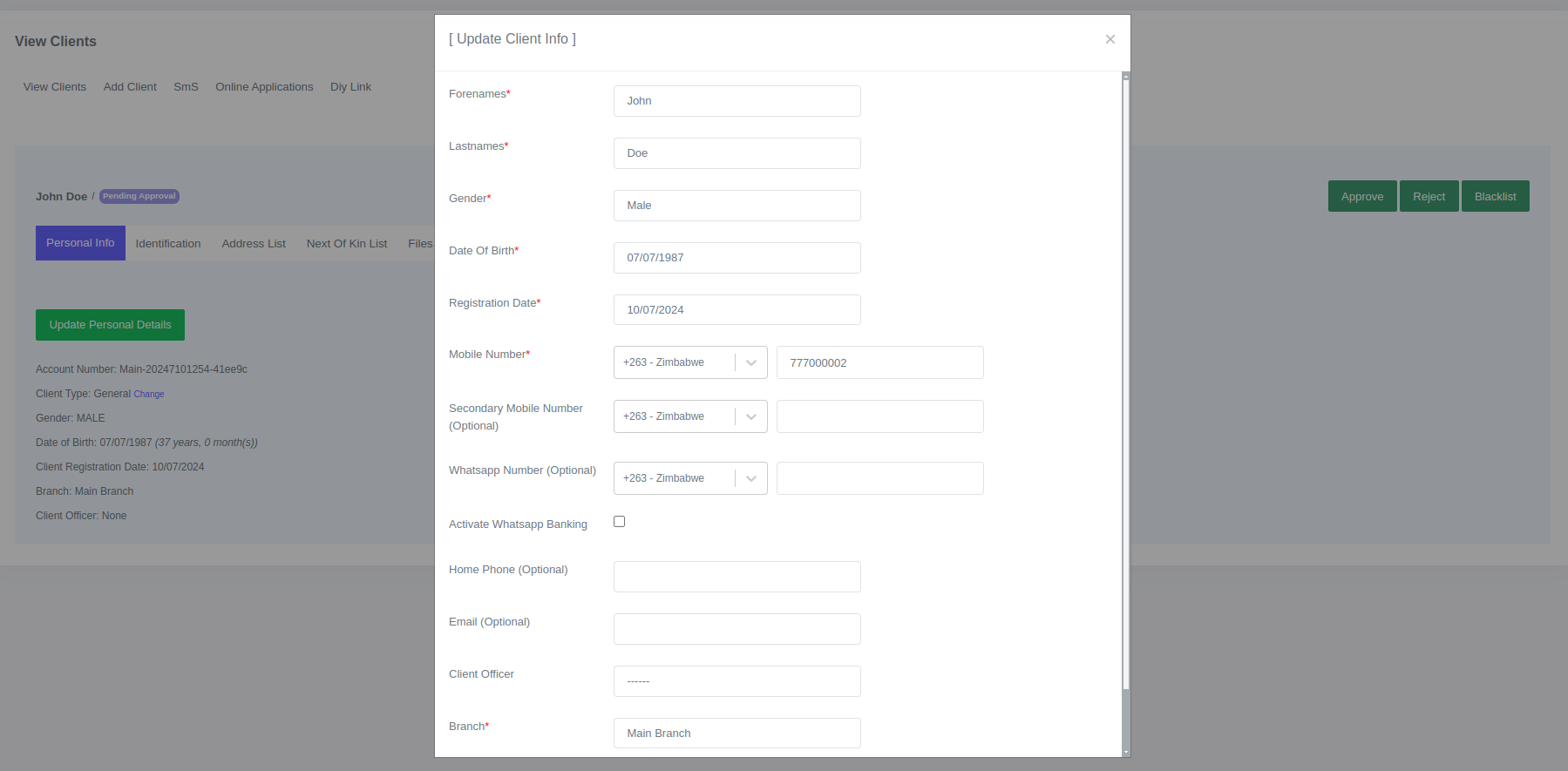

Scroll down and submit to save the changes.
Editing Identification
To view client identification click the Identification tab on the client profile.
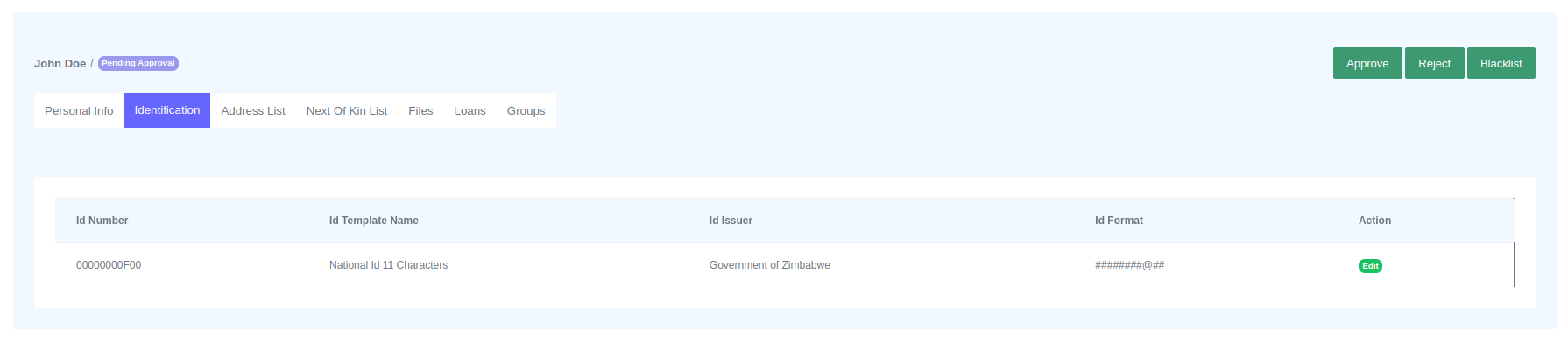
To edit the client identication click on the "edit" button. 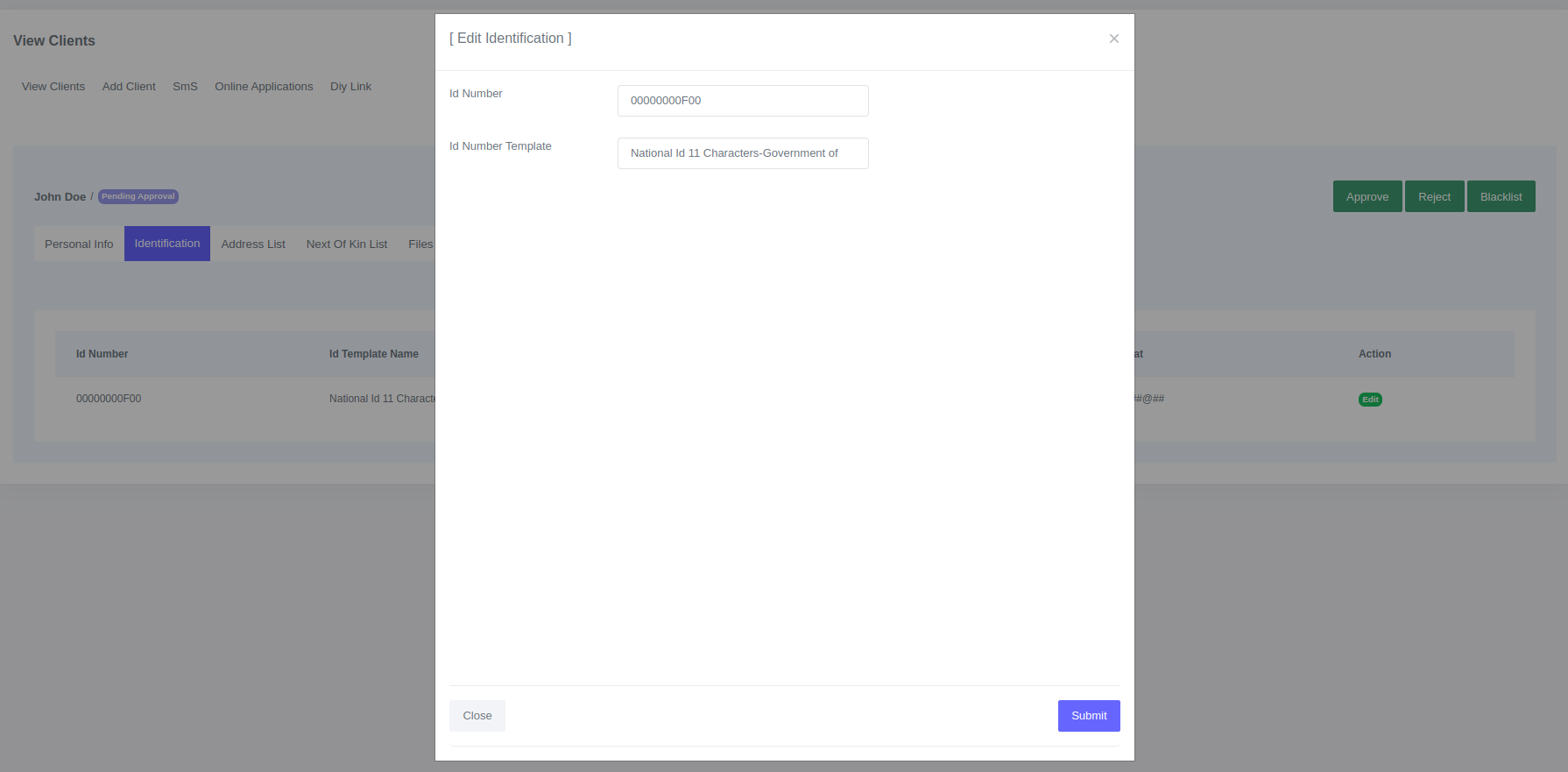 Click submit to save changes.
Edit Address
To view client address click the Address List tab on the client profile.
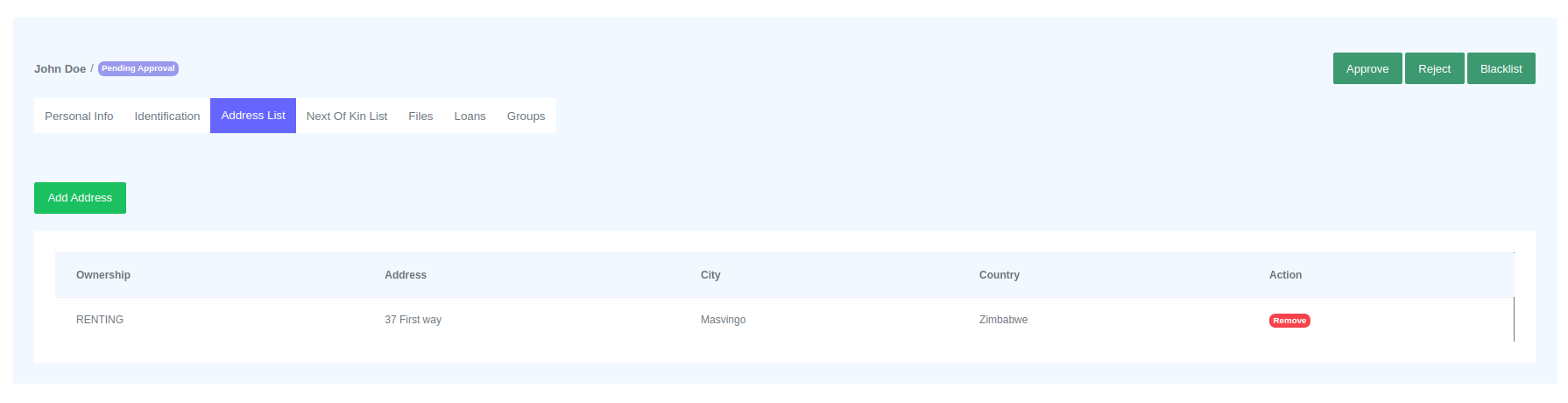
You cannot edit an address once it has been created. To change an address, you must first delete it by clicking the "Remove" button. Once the address is deleted, click the "Add Address" button to create the new address. 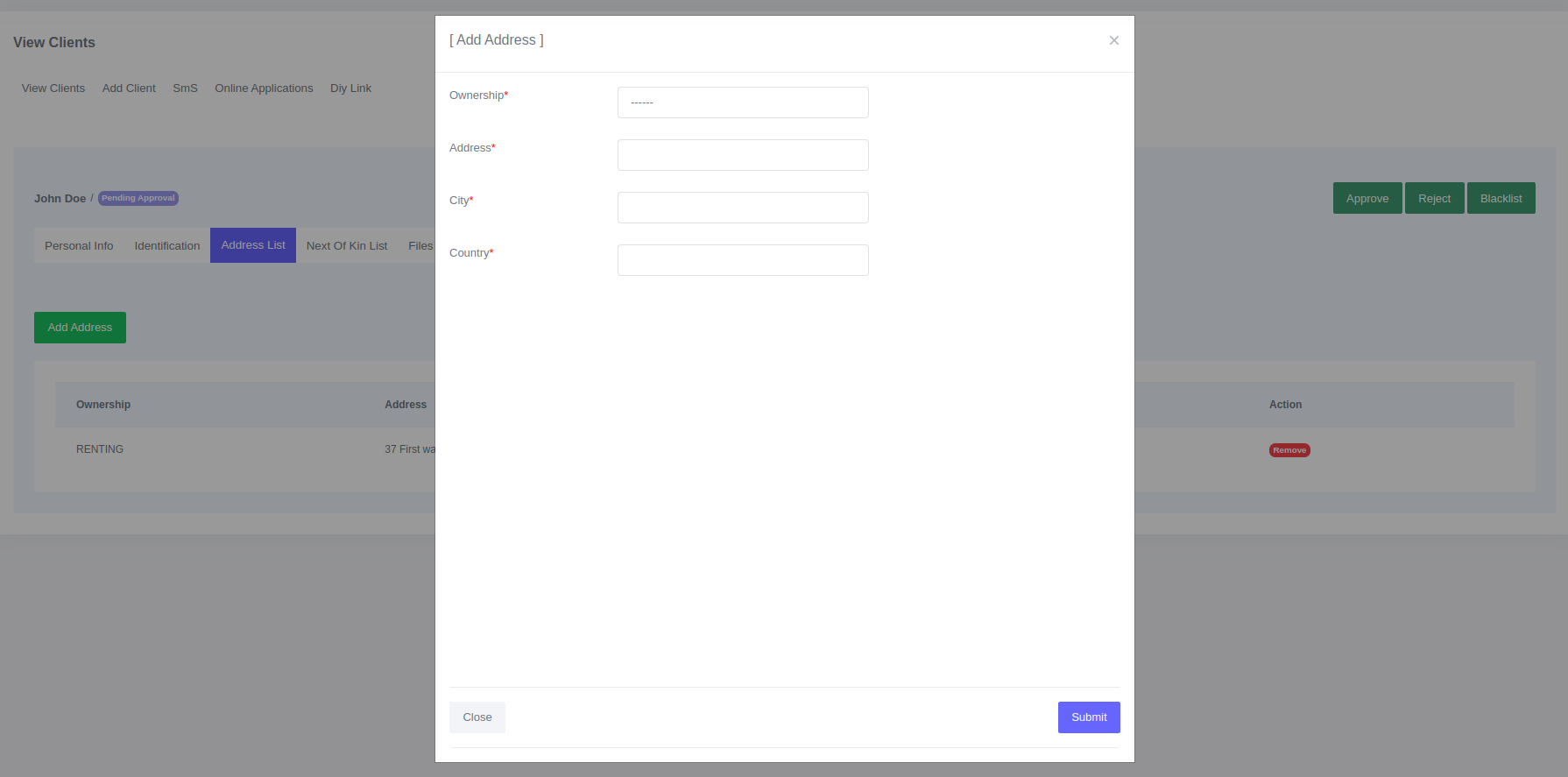 You can add more than one address.
Edit Next Of Kin
To view next of kin click the next of kin list tab on the client profile.

You cannot edit next of kin once it has been created. To change an next of kin, you must first delete it by clicking the "Remove" button. Once the next of kin is deleted, click the "Add Address" button to create the new address. 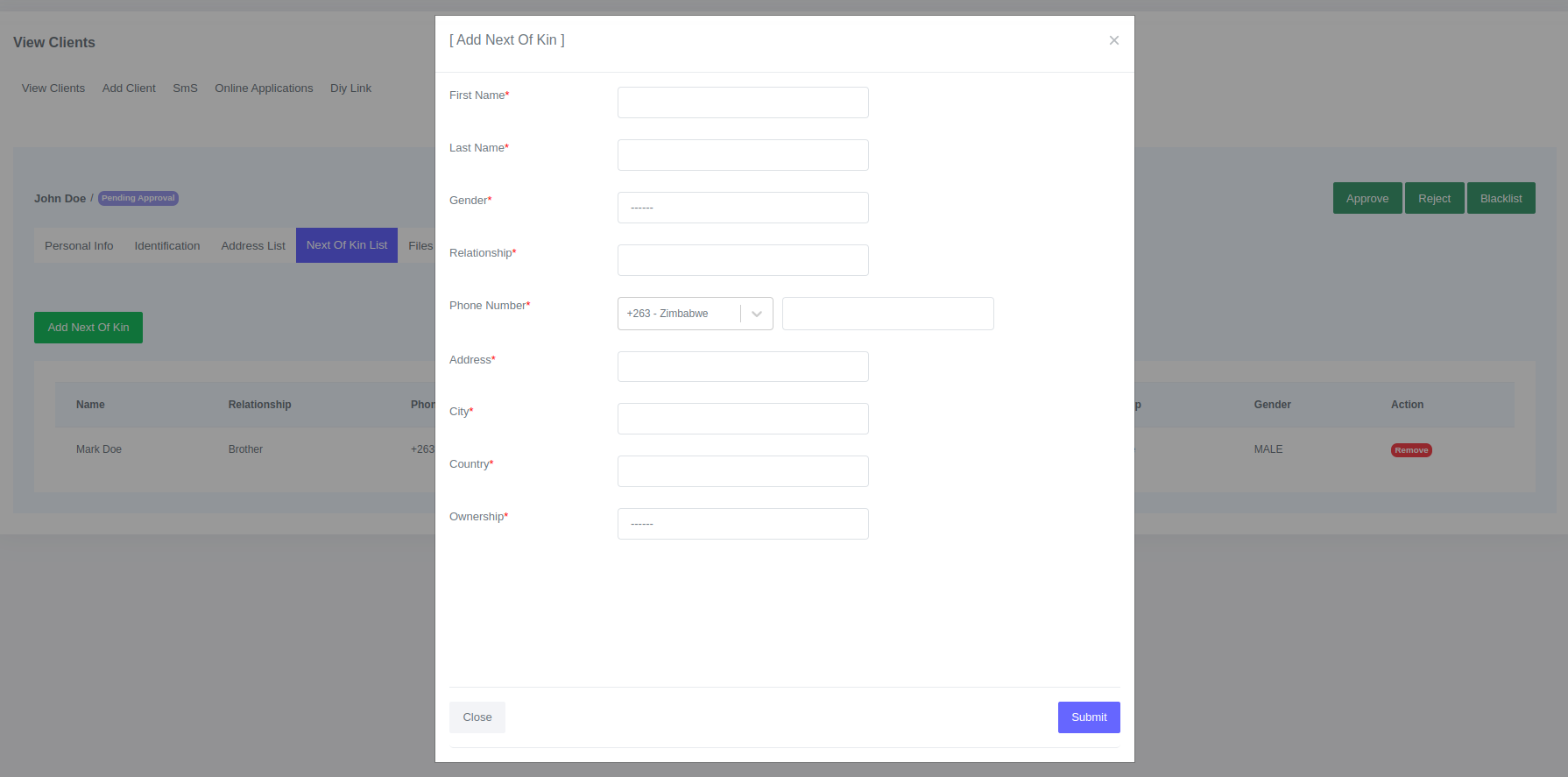 You can add more than one next of kin.
Files
To view files click files tab on the client profile.
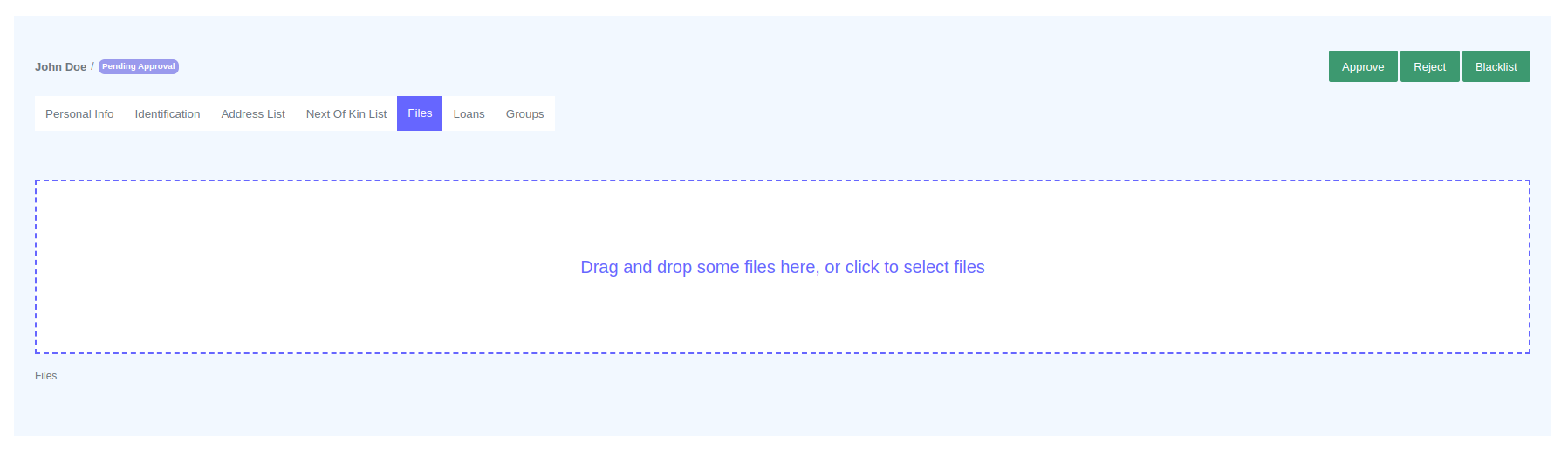
To upload client files follow instructions on the files tab.
Custom Fields
If you have added custom fields to a client profile, you can edit them on the client profile under their respective client forms. For example, if you have created two custom forms, "Gvt Banking Details" and "Gvt Employment Details," and have added custom fields to each form, you can view the custom fields by clicking their respective tabs on the client profile.
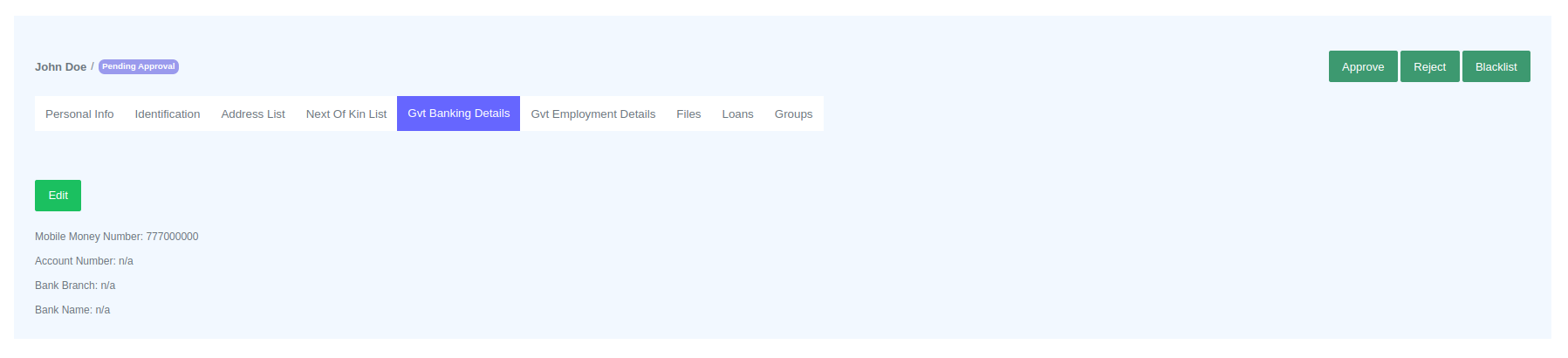
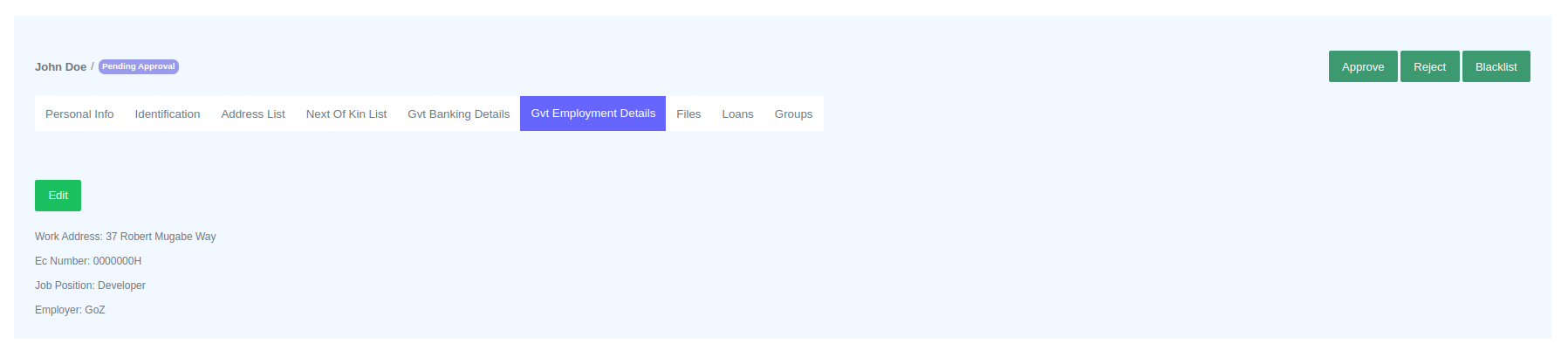
Click the "Edit" button to make changes and submit the form.
Editing client type.
You can edit the client type after the client has been created. To edit, go to the client profile and click on the "Personal Info" tab. Then click "change" next to "Client type."
If you create a client, you cannot delete it.