Clients Controls
Client controls assist in regulating the type of data permissible within the system. Listed below are the various options available.
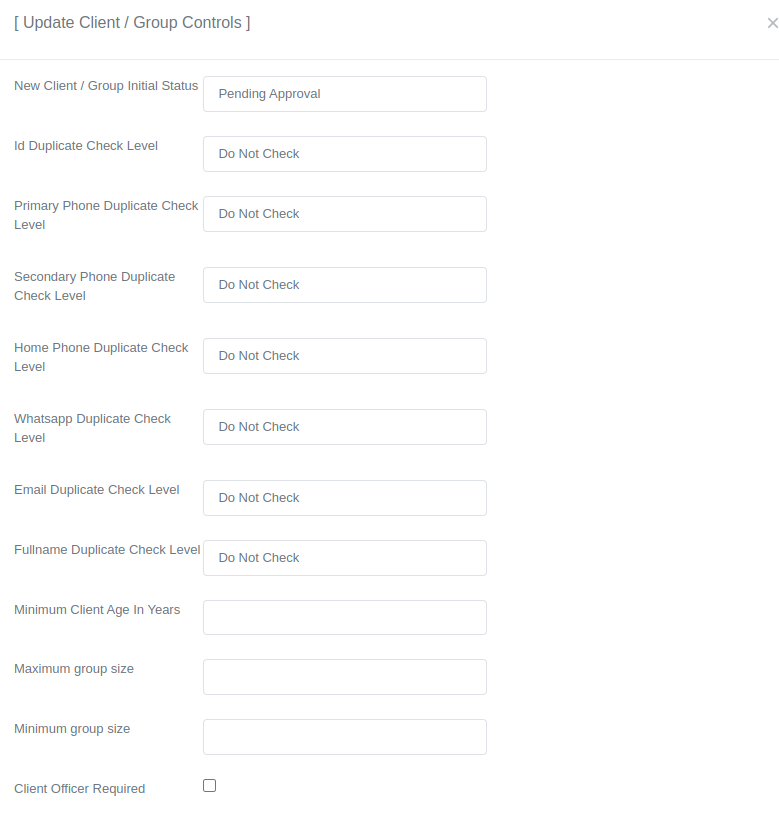
New Client Initial Status
Select the initial status for new clients. There are two options available:
- Pending Approval - Select this option if you require client approval before they can open loan accounts.
- Inactive - Select this option if you wish to bypass the client approval process, which is suitable when the person entering client data is also responsible for approving the client.
Duplicate Checks
They are three duplicate check levels in the Lenda System.
-
Do Not Check - This implies that the system will not verify whether a client with identical information already exists in the system.
-
Warning - This implies that the system alerts users if a client with identical information exists, but users have the option to disregard the warning.
-
Reject - This implies that if a client with identical information already exists, users are prevented from adding a new client with the same details.
Fields Checked for Duplicates
| Field | Description |
|---|---|
| ID | Client Identification Number |
| Primary Phone | Client Primary Phone Number |
| Secondary Phone | Client Secondary Phone Number |
| Home Phone | Client Home Phone Number |
| Client Whatsapp Number | |
| Client Email Address | |
| Fullname | Client Fullname |
Minimum Client Age
The minimum age, in years, required for a client to be permitted into the system.
Client Officer Required
Specify whether a client should be assigned to a client officer upon creation.
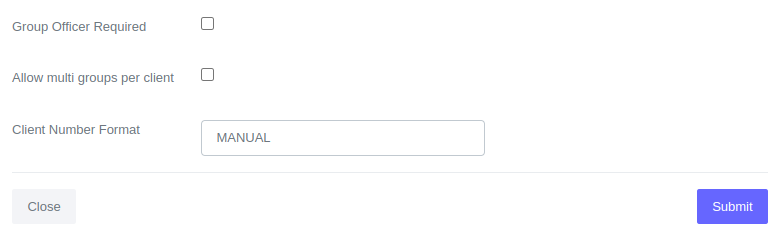
Client Number Format
Determine the format to be used when generating unique client account numbers. The options available are:
- Branch Client Count - E.g MVO1 where MVO represents the branch code and 1 denotes the number of clients in the branch.
- Branch Date Random - E.g MVO-20244101443-IX3TC where MVO stands for the branch code, 20244101443 represents the date and time (2024 - Year, 4 - Month, 10 - Day, 1443 - Time), and IX3TC denotes a random alphanumeric text.
- Manual - Users manually input the client number when adding clients to the system. Note: Each client number must be unique.
- Custom - If you have a unique format, we can integrate it into the system.
How to Configure Controls
-
Choose 'Admin' from the main navigation bar.

-
Choose 'Manage Clients / Groups' from the Admin navigation bar.

-
Choose 'Client / Group Controls' if not selected already from the Manage Clients navigation bar.

-
Click on the 'Update Controls' button to access the controls form.

-
After opening the controls form, locate the setting that requires modification and update its value accordingly.
-
After updating, scroll down and click "Submit" to save.