Manage Branches
This page provides information about creating and managing branches, holidays, and non-working days.
Branch creation
To create, update, or delete a branch, branch holidays, or non-working days, you must have the appropriate permissions. For more information, see Roles and Permissions.
To create a branch:
- Go to Admin > Manage Branches > Branches.
- Click on "Add Branch" button.

- A form will be opened for you to fill out.
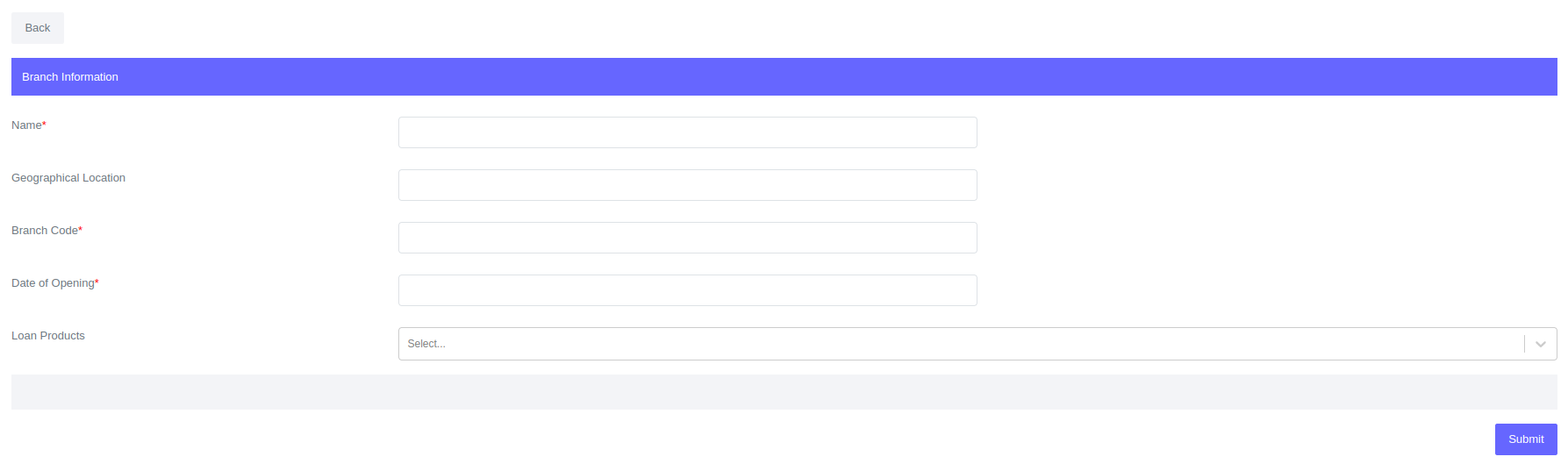
- Click Submit
When a new branch is created, the system automatically creates general ledger accounts that correspond to that branch. For more information, see General Ledger Account Creation.
Fields for branch:
| Field | Description |
|---|---|
| Name | Branch name |
| Geographical Location | Loacation of the branch |
| Branch Code | Branch code used to identify the branch other than branch name |
| Date of Opening | Date of opening is used on automatic general ledger creation. The date will be the general ledger creation date. This date can be backdated |
| Loan Products | Select the loan products that will be availbale to this branch |
Edit a branch
To edit a branch:
- Go to Admin > Manage Branches > Branches.
- Click on the branch name in the branch list. This will take you to the branch profile. On the branch profile, click on the "Edit" button to open the edit form.
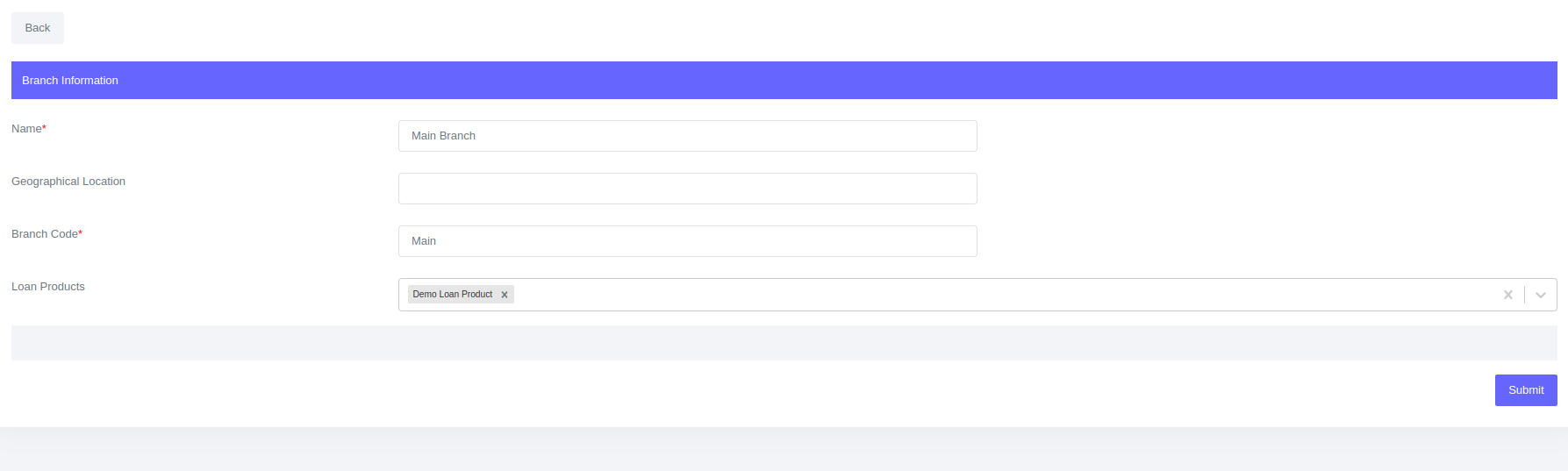
- Edit the details and Click submit.
Date of opening can not be edited since it was used to create general ledger accounts for the branch.
Branch can not be deleted once created.
Holidays and Non-Working Days
Holidays and non-working days are defined in the Lenda system to ensure that loan schedules are not created for those days. This helps avoid situations where the system sends missed installment alerts to clients on days when they cannot access services from the organization.
Holidays creation
To create holidays:
- Go to Admin > Manage Branches > Holidays.
- Click on "Add Holiday" button.

- A form will be opened for you to fill out.
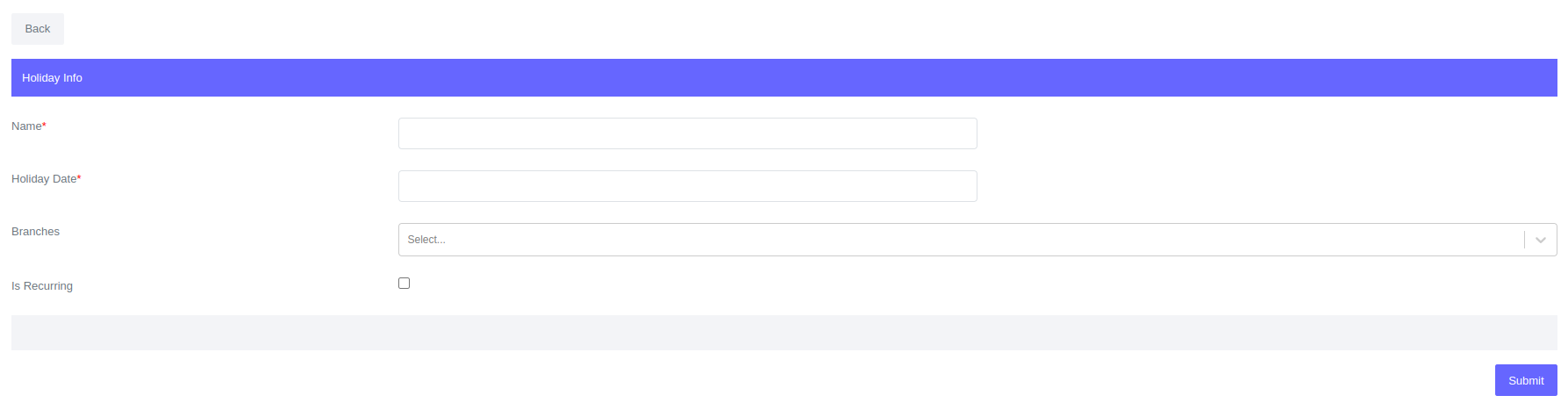
- Click Submit
Fields for Holidays:
| Field | Description |
|---|---|
| Name | Holiday name |
| Holiday date | Holiday date |
| Branches | Branches affected by the holiday. |
| Is recurring | Is there a holiday every year on the same date |
Edit and Delete Holidays
To edit holiday:
- Go to Admin > Manage Branches > Holidays.
- Click on the description in the holiday list. This will open the holiday profile. On the holiday profile, click on the "Edit" button to open the edit form.
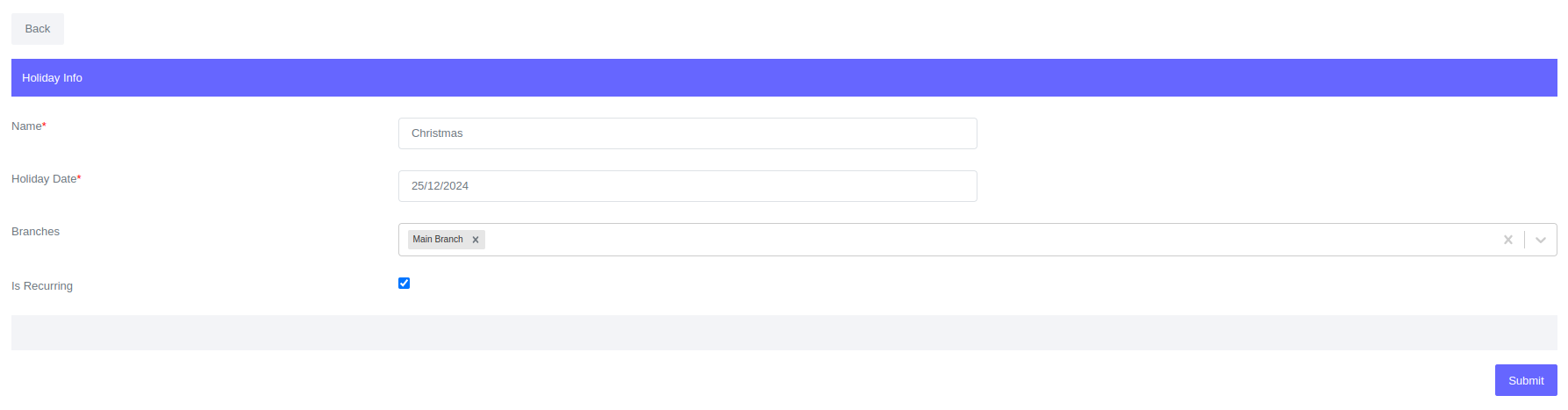
- Edit the details and Click Submit.
To delete holiday:
- Go to Admin > Manage Branches > Holidays.
- Click on the description in the holiday list. This will open the holiday profile. On the holiday profile, click on the "Delete" button. A confirmation dialog box will appear. Click "Delete" in the dialog box to confirm the deletion.
Non-working days creation
To create non-working days:
- Go to Admin > Manage Branches > Non-working days.
- Click on "Edit" button. A form will be opened for you to edit.

- Edit and Click Submit. You can select multiple non-working days e.g Saturday and Sunday.
Fields for Holidays:
| Field | Description |
|---|---|
| Non-Working days | Day's the organization is not operational |
To edit or delete non-working days, follow the same steps that you would use to create a new non-working day.